Table of Contents
- Einführung in die Versionshistorie
- Die Bedeutung der Versionshistorie
- Zugriff auf den Versionsverlauf
- Haupt- und Nebenversionen erklärt
- Einstellung von Benutzergruppen für Versionen
- Anzeigen und Wiederherstellen älterer Versionen
- Löschen von Versionen und deren Einstellungen
- Zugriff auf den Versionsverlauf über verschiedene Anwendungen
- Besonderheiten bei bestimmten Dokumenttypen
- Fazit: Effizienz durch Versionshistorie
- Häufig gestellte Fragen zur Versionshistorie
Introduction to Version History
The version history in SharePoint provides a detailed record of all changes made to your documents. It allows you to browse and restore previous versions if needed. This way, you always have an overview of the development of your documents.
What is Version History?
Version history stores all changes made to a document. This includes both major and minor versions. By using this feature, you can easily revert to an earlier state.
The Importance of Version History

The version history is crucial for document security and integrity. It protects against unexpected data loss and promotes collaboration within the team. All users can track their changes and undo them if necessary.
Benefits of Version History
- Protection against data loss
- Traceability of changes
- Facilitated collaboration
- Easy restoration of documents
Accessing the Version History
Accessing the version history in SharePoint is simple and user-friendly. You can access the version history of a document in various ways to view or restore previous versions.
How to Access the Version History
To open the version history of a document, follow these steps:
- Select the row of the document.
- Select „Version History“ from the top menu.
- Alternatively, click on the three dots next to the document name.
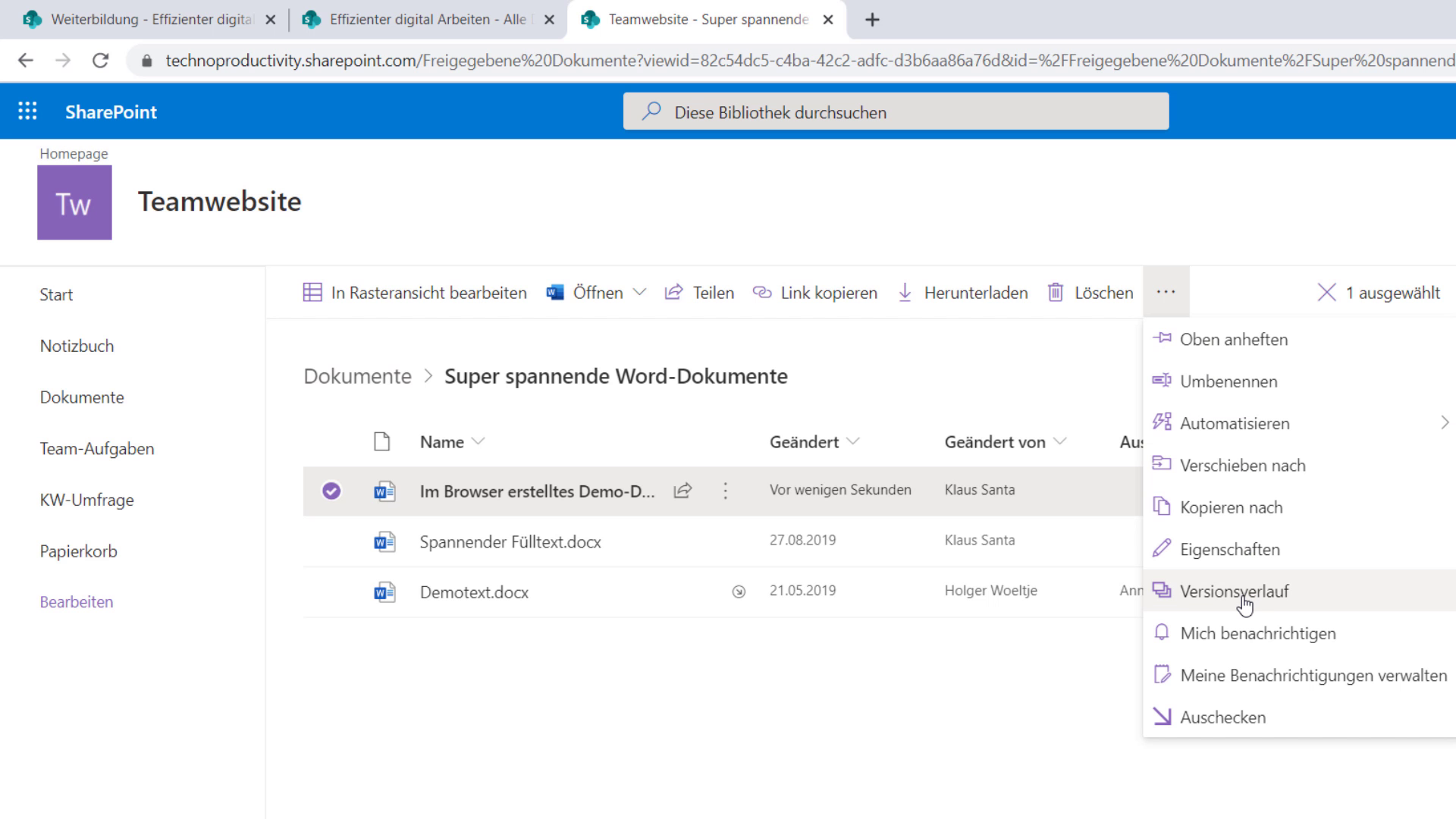
You will then see an overview of the versions that provide you with information about the creators and modification dates. This way, you can track how the document has evolved over time.
Main and Minor Versions Explained
In SharePoint, there are main and minor versions that have different functions. These versions help you organize and track changes better.
What are Main Versions?
Main versions are the most important changes of a document. They are usually saved when significant changes are made. These versions are easily accessible and provide a clear overview of the progress of the document.
What are Minor Versions?
Minor versions are intermediate versions that often contain smaller adjustments or comments. These versions allow you to track the history in more detail without compromising the clarity of the main versions.
Benefits of Using Major and Minor Versions
- Facilitated traceability
- Improved document management
- Flexibility in collaboration
- Reduction of errors in changes
Setting Up User Groups for Versions
The management of user groups in SharePoint allows for different access levels to document versions. This is particularly useful to ensure that external users can only see the major versions while internal employees can work on minor versions.
Configuring User Groups
To set up user groups for versions, follow these steps:
- Open the document in SharePoint.
- Go to the permission settings.
- Define groups for internal and external users.
- Adjust permissions for major and minor versions.
Through these settings, you can control who sees which versions. For example, external customers only have access to the main version, while internal teams can work on sub-versions.
Set up an approval process
To control the visibility of sub-versions, you should set up an approval process. This ensures that changes are approved by an authorized person before they are published.
View and restore older versions
Viewing and restoring older versions is a simple but important process in SharePoint. It allows you to revert to previous document states at any time, increasing document security.
View older versions
To view older versions of a document, follow these steps:
- Open the version history of the document.
- Select the desired version from the list.
- Check details such as creator and modification date.
Restore older versions
If you want to restore an older version, the steps are also simple:
- Select the older version in the version history.
- Click on „Restore“.
- Confirm the restoration.
With these features, you can ensure that no important changes are lost and that you can always return to a stable state of the document.
Deleting Versions and Their Settings
Deleting versions in SharePoint is an important function that helps you maintain the clarity of your document library. You can delete both major and minor versions, provided that this is allowed by the settings.
How to Delete Versions?
To delete a version, follow these steps:
- Open the version history of the document.
- Select the version you want to delete.
- Click on „Delete“.
It is important to note that some organizations restrict the deletion of major versions for security reasons. Therefore, you should review your organization’s policies.
Versioning Settings
The versioning settings can be customized in detail. You can specify whether users are allowed to delete major or minor versions. These settings help ensure the integrity of the documentation.
Accessing Version History through Different Applications
Accessing version history is possible not only through SharePoint but also through various Microsoft applications. This increases flexibility and user-friendliness.
Access via Microsoft Office Applications
You can access version history directly from Word, Excel, or PowerPoint. To do this, follow these steps:
- Open the document in the corresponding application.
- Go to „File“.
- Select „Info“ and then „Version History“.
Access via Windows Explorer
If you have connected your SharePoint document library in Windows Explorer, you can also access the version history there:
- Open Windows Explorer.
- Navigate to the folder of your SharePoint library.
- Right-click on the document and select „Version History“.
These methods provide you with quick access to the version histories of your documents, allowing you to work more efficiently.
Special Features for Certain Document Types
In SharePoint, not all document types support the same version history. Some formats have specific limitations that users should be aware of.
OneNote and Version History
An example is the OneNote notebook. Version control for this document format is not available through SharePoint. Instead, OneNote has its own built-in versioning.
Alternative Methods for Version Control
For OneNote, you can view the version history of pages directly in the desktop app. This avoids conflicts and provides a user-friendly overview of changes.
Important Notes
- Limited support for some formats
- OneNote uses its own versioning
- Version history cannot be accessed via SharePoint
Conclusion: Efficiency through Version History

The use of version history in SharePoint offers numerous advantages that can increase the efficiency of your work. By being able to view and restore previous versions, you maintain control over your documents.
Optimal Use of Version History
The version history helps you track changes and undo unwanted adjustments. You can easily monitor the development of your documents and return to a stable state at any time.
Summary of Benefits
- Protection against data loss
- Traceability of changes
- Improved collaboration within the team
- Flexibility in document management
Overall, version history is an indispensable tool for all SharePoint users to increase efficiency and security in document management.
Frequently Asked Questions about Version History
In this section, we will answer some common questions about version history in SharePoint. This information will help you better understand and make optimal use of the feature.
How many versions can I store?
The number of storable versions depends on the settings of your SharePoint document library. However, you can usually store multiple major and minor versions.
Can I restore deleted versions?
If you have deleted a version, you usually cannot restore it. It is important to be careful when deleting versions.
How often is a new version created?
New versions are created when you save changes to a document. The creation of major and minor versions occurs according to the specified settings.
Who can view the version history?
Access to the version history depends on the permissions set for user groups. External users often have restricted access.
What happens to minor versions?
Minor versions are important for detailed tracking of changes. They provide a more comprehensive view of the development of a document without overloading the major versions.